Installing PcVue
This guide walks you through the complete PcVue installation process.
Prerequisites
The prerequisites are components that you must install before PcVue or the Web Deployment Tools can install and run correctly. The necessary prerequisites ship with PcVue, and no additional licenses are required.
When you start the installation, the wizard first checks whether the prerequisites are present on the computer and installs any that are missing.
Installation wizard
PcVue installs after the prerequisites.
A wizard guides you through the installation process, prompting for information where necessary. The exact process depends on the options you choose, the operating system, and what software components are already installed on your computer, but the main stages are as follows.
At each step, after you configure any options, click OK or Next to proceed. If you click Cancel at any time, the installation stops.
Installation steps
-
Welcome to the InstallShield Wizard - This is the first step of the installation itself. Click Next to continue.
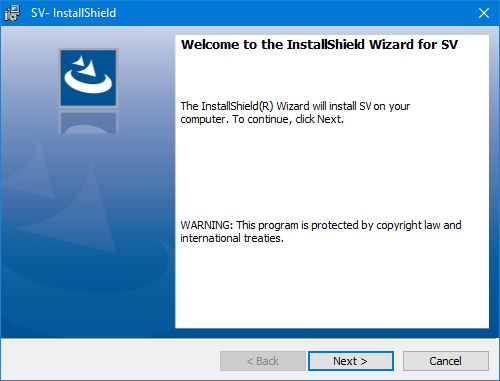
-
License Agreement - Before you can continue with the installation you should read the License Agreement and select I accept... or I do not accept... as appropriate. Click Next to continue only if you accept the agreement.
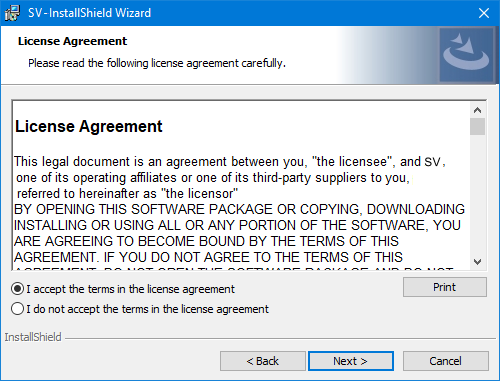
-
Products and Projects Folders - The wizard suggests a destination folder for PcVue executable files and for projects and libraries. To install the software elsewhere, use Change to select another path; do the same for projects and libraries.
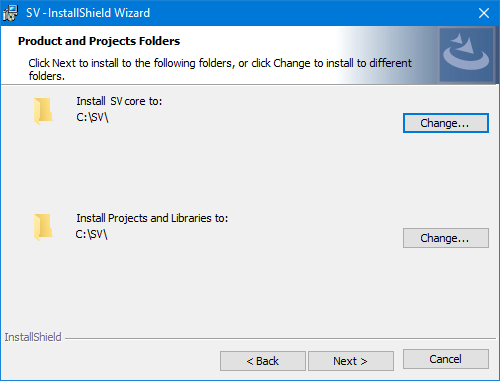
-
Setup Type - Select a setup type from the following options.
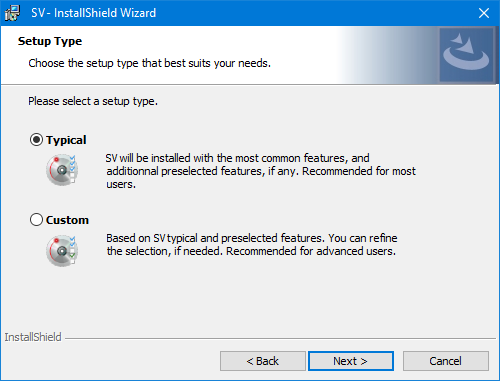
Setup type Description Typical Installs the most common features and preselected options for the software, based on the selection in the Features Selection Menu. For example, if you selected Web back end, the installer selects the extra components for the Web back end role and for the basic PcVue installation. Custom Allows you to select exactly which components you want to install. The selection is the same as for Typical. Recommended for advanced users. 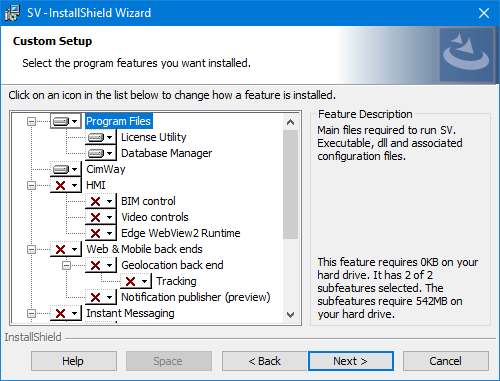
-
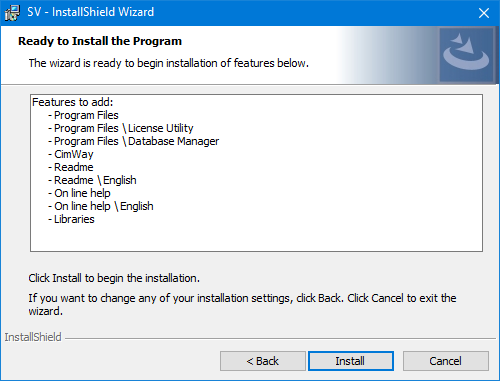
Ready to Install the Program - Confirm whether you want to complete the installation or review or change the options you selected. Click Install to proceed, Back to return to the options, or Cancel to end the installation.
-
Installing Status - A progress bar shows progress for each component, and then a dialog confirms that the installation is complete. Click Finish.
Completing the installation
If the installer requests a restart, reboot before launching PcVue.
After installation completes, you might need to reboot your computer. This restart is sometimes necessary so the operating system can register files that PcVue needs to run.
Version update
If you start the installation on a computer where a previous version is already installed, the installation process updates that installed version.
A version can be updated by installing from:
- Full DVD
- Standard package
- Cumulative patch
During an update:
- In most cases, the installation updates the product without changing the list of installed features.
- If you need to change that list as part of the update, use the Maintenance procedure Modify after the update.
- In some cases, depending on the update content, the installation process uninstalls the existing version before it reinstalls the new one. You can then change the list of installed features during the same update.
See Maintaining PcVue or the Web Deployment Tools for more information.