Installing the hardware protection key driver
The PcVue software is protected against unauthorized use by using a hardware device known as a dongle or hardware protection key. Each new license of the PcVue software is delivered with the appropriate Sentinel key. Two types of hardware protection key are available and drivers for both are installed:
- Parallel port
- USB port
Specify the key type when you order the license.
USB hardware protection key models
The model of key used has changed over time. You may be supplied one of the models shown below.
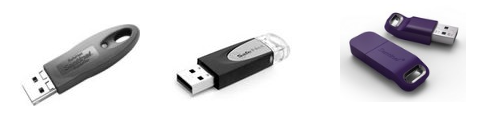
Replacing a previous version
The version of the Sentinel Protection driver is compatible with all previous versions of PcVue since 6.04.
Under some circumstances, if an older driver version (5.41.0) is present, it may cause a malfunction. If that occurs, you can solve it as follows:
- Uninstall any installed version of the driver.
- Reboot the PC even if you are not prompted.
- Install or re-install the version of the driver supplied on the DVD. See How to install the hardware protection key driver manually below.
- Reboot the PC again.
Installing the hardware protection key driver manually
The hardware protection key driver is installed automatically as part of the prerequisites when you install PcVue software.
However, if necessary, you can install it manually:
- From the PcVue Installation menu, select the Add-ons, Drivers and Tools menu and then select Sentinel Driver. When the wizard for the Sentinel System Driver appears, select Next.
- If a previous version of the Sentinel System Driver is already installed, a dialog asks whether you want to upgrade it. Click Next.
- A Welcome dialog appears. Click Next.
- The License Agreement dialog appears. Read the license agreement, select the option I accept... to continue only if you accept the agreement, then click Next.
- The Setup Type dialog appears. Select Complete, then click Next.
- The Ready to Install dialog appears. Select Install to run the installation.
- An Installing dialog shows a progress time-bar. When it shows the message InstallShield Wizard Completed, click the Finish button.
Troubleshooting the hardware protection key driver
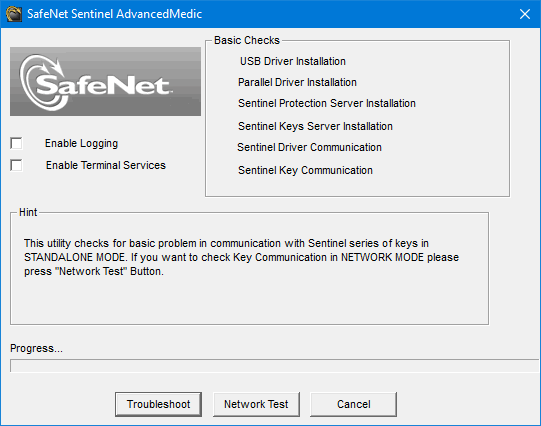
Thales (formerly SafeNet), the manufacturer of the hardware protection key used for PcVue, provides a diagnostic tool (Sentinel Advanced Medic) if you need to troubleshoot or check protection status on a Windows computer. The tool reports Sentinel driver status and key limits for USB and parallel port keys. Find it on the PcVue distribution media as a self-extracting executable.
You can run the tool in standalone mode or across a network, regardless of whether PcVue is installed on a particular PC:
-
Locate the self-extracting executable,
SentinelAdvancedMedic.exe, on the PcVue distribution media in the Add-ons and Tools folder, and run it. The diagnostic tool is installed and a shortcut, Sentinel Advanced Medic, created on the desktop. -
Start the tool using the desktop shortcut.
-
Select Troubleshoot to run the basic checks on the local system, or Network Test to run checks over a network. When a check fails, the process stops and a message appears in the Hint box. Click Acknowledge to continue.
-
When the checks are complete, click Done to close the diagnostic tool.
For further information, see the Thales CPL (Sentinel) site.