Configuring Windows settings
This topic describes the steps you need to take to successfully install, deploy and run PcVue with regards to the operating system platform and its security features.
User Account Control
By default, for security reasons, operating systems display a dialog whenever a user action requires elevated privileges—for example, when you install a program. This feature helps block unwanted actions from background processes such as viruses, spyware, and other potentially harmful programs.
Accept the user privilege elevation if you are at the origin of the action and approve it.
PcVue complies with the User Account Control feature. It is strongly recommended to keep it enabled at all times, for installing, configuring, deploying or running the application.
User privileges for installation
The user that installs PcVue must have Administrator privileges. This is mandatory for the installation process to execute properly.
You must acknowledge the User Account Control (UAC) privilege elevation for the installation process to run correctly.
Data Execution Prevention (DEP)
Windows operating systems have a security feature called Data Execution Prevention (DEP) to help prevent damage from viruses and other security threats.
At startup, PcVue overrides the system-wide policy by attempting to automatically disable DEP for Sv32.exe. The system DEP policy setting must be:
- OptIn (default setting for Windows client versions)
- OptOut (default setting for Windows Server versions)
- AlwaysOff
If the system DEP policy is AlwaysOn, the PcVue application returns an error on startup and then stops. In such a case, you should contact your system administrator.
User permissions for installation folders
The Windows user account that runs PcVue must have the Modify Permission for the installation folders, including:
- The root folder of Bin, Etc, Usr and Lib (the topmost folder of the PcVue Path)
- The topmost folder of the ProjectPath if the
-b ProjectPathcommand line argument is used - The Central Versions folder if Central Project Management is being used
There may be differences in default permissions depending on the operating systems, in particular desktop OS vs server OS. It also depends on the target partition and folder (system partition vs other partitions).
In most cases, you need to change permissions because an administrator account ran the installation, but standard user accounts run the software afterward.
We strongly recommend that you create a dedicated user group for all Windows user accounts that run the software. You can set permissions on the installation folders once, and changing user accounts is simpler. This setup also limits who can modify PcVue files.
Viewing effective permissions
PcVue includes a tool to view permissions for the current user on selected folders: ViewEffectivePermissions.exe, in the PcVue \Bin folder.
Running PcVue
During start-up, PcVue checks that permissions and security features are set correctly for the most common uses.
For security reasons, it is strongly recommended to apply the least privilege principle by not running PcVue with Windows administrator privileges.
PcVue does not start if any of the following are not set correctly:
- Permissions
- DEP exception
- Missing or incorrectly registered components
Registering components for multiple versions
This procedure is only necessary if you have two or more versions of PcVue installed on the same computer.
When you install PcVue, its components are registered with Windows. If there was another version of PcVue already installed, its registration is overwritten and it may no longer function correctly.
To work around this issue, each version of PcVue includes a Component Registration utility. Each time you want to run a different installed version of PcVue, run that version's Component Registration utility first.
A shortcut to the utility can be found on the Windows desktop and in the Start menu: Start > Program Files > PcVue > Tools > Component Registration.
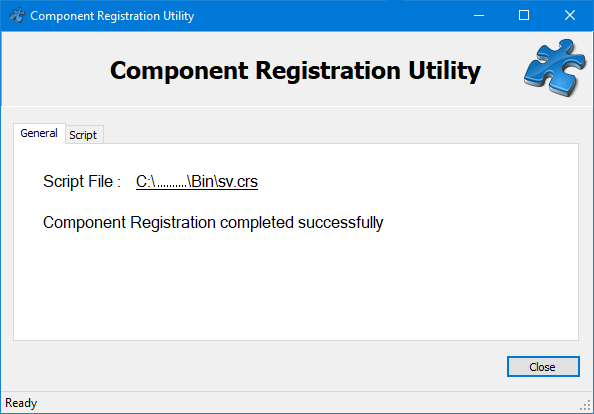
Running the Component Registration Utility resets all system settings associated with PcVue processes to their installation defaults, including:
- Settings associated to the SV Core Daemon, SV DbConnect and SV Core Session Host services: Startup type, Recovery mode, Service account, Service dependencies
- Configuration of the 3 DCOM applications associated to PcVue
Document these settings in your project documentation so you can restore them whenever you update PcVue, replace a computer, or run the Component Registration Utility for any other reason.